# ⚙️ Provisionierung 3cx Windows Softphone - Benutzername/Passwort

Öffnen Sie das von 3CX erhaltene E-Mail und klicken Sie auf "<span style="color: rgb(53, 152, 219);">Passwort festlegen</span>"

[![grafik.png](https://wiki.com4all.ch/uploads/images/gallery/2024-11/scaled-1680-/ZEoMWGVMtXjnCZrY-grafik.png)](https://wiki.com4all.ch/uploads/images/gallery/2024-11/ZEoMWGVMtXjnCZrY-grafik.png)

Definieren Sie Ihr neues Passwort auf der Webseite die geöffnet wird

[![grafik.png](https://wiki.com4all.ch/uploads/images/gallery/2024-11/scaled-1680-/wfIMPEk8YVuksyY3-grafik.png)](https://wiki.com4all.ch/uploads/images/gallery/2024-11/wfIMPEk8YVuksyY3-grafik.png)

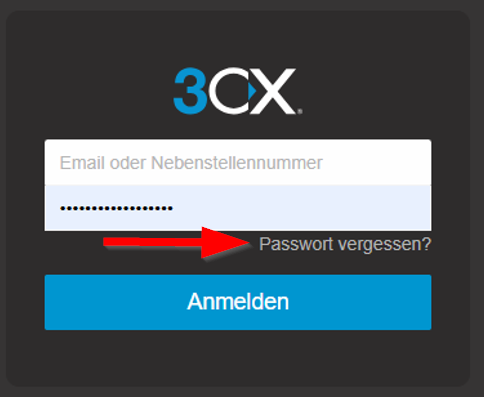
<p class="callout info">Falls Sie das Provisionierungs-Email nicht erhalten haben, können Sie sich über die URL Ihres Webclients über den Link "Passwort vergessen?" einen neuen Link zusenden:</p>

[![grafik.png](https://wiki.com4all.ch/uploads/images/gallery/2024-11/scaled-1680-/CL2UNWLtvvHN1mZw-grafik.png)](https://wiki.com4all.ch/uploads/images/gallery/2024-11/CL2UNWLtvvHN1mZw-grafik.png)

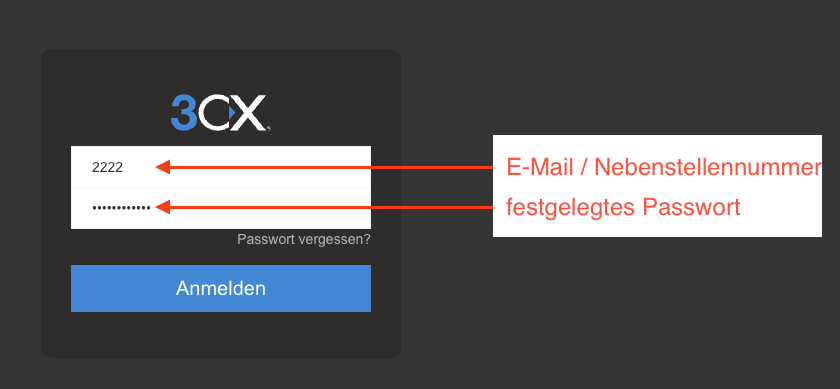
Sie werden zur Login-Seite des Webclients weitergeleitet. Melden Sie sich mit Ihren neuen Login-Daten an

[![webclient-login.png](https://wiki.com4all.ch/uploads/images/gallery/2024-11/scaled-1680-/viRtXnCcigtq2byN-webclient-login.png)](https://wiki.com4all.ch/uploads/images/gallery/2024-11/viRtXnCcigtq2byN-webclient-login.png)
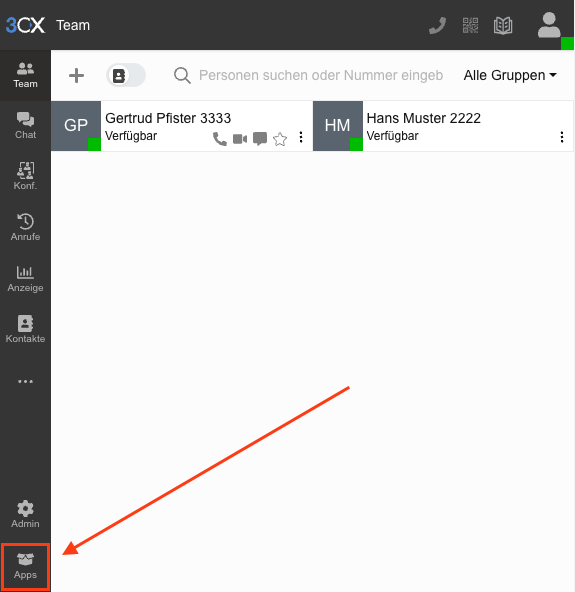
Drücken Sie auf der unteren linken Ecke auf "Apps"

[![click-apps.png](https://wiki.com4all.ch/uploads/images/gallery/2024-11/scaled-1680-/BTydvXdrkZVknpEf-click-apps.png)](https://wiki.com4all.ch/uploads/images/gallery/2024-11/BTydvXdrkZVknpEf-click-apps.png)
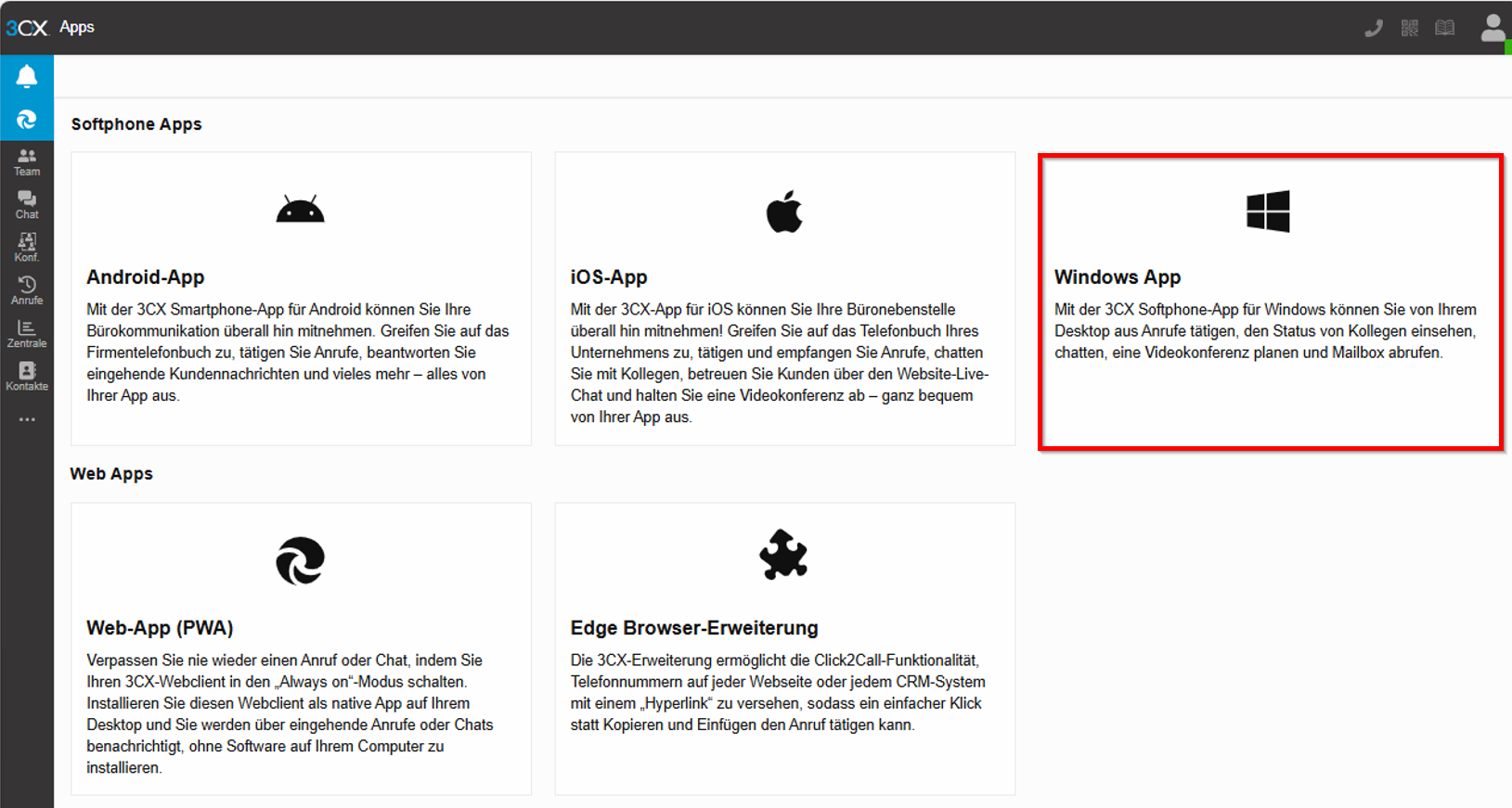
Drücken Sie auf "Windows App"

[![grafik.png](https://wiki.com4all.ch/uploads/images/gallery/2024-11/scaled-1680-/PVYnzEPpGDquLaRi-grafik.png)](https://wiki.com4all.ch/uploads/images/gallery/2024-11/PVYnzEPpGDquLaRi-grafik.png)
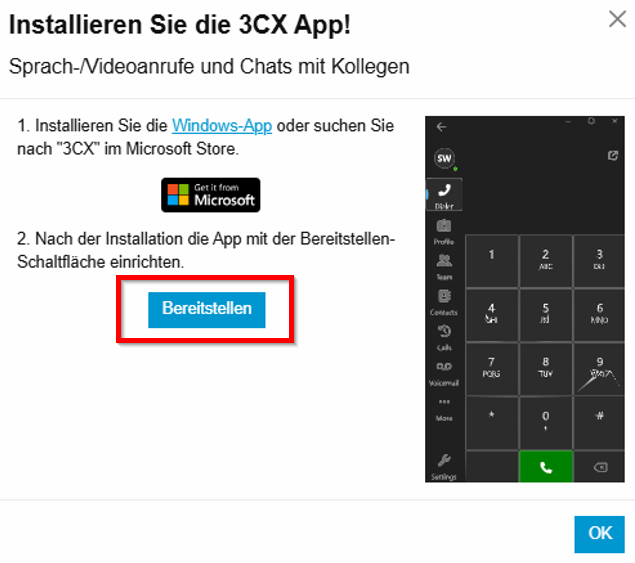
Gehen Sie direkt zu "Bereitstellen" damit die 3cx App automatisch eingestellt wird

[![grafik.png](https://wiki.com4all.ch/uploads/images/gallery/2024-11/scaled-1680-/qaAKu4Wd7PvfOCzo-grafik.png)](https://wiki.com4all.ch/uploads/images/gallery/2024-11/qaAKu4Wd7PvfOCzo-grafik.png)
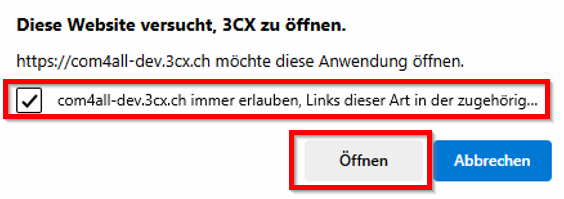
Setzen Sie noch das Häkchen wie unten dargestellt und klicken Sie auf "Öffnen"

[![grafik.png](https://wiki.com4all.ch/uploads/images/gallery/2024-11/scaled-1680-/gJCIjYa0x6lLKxM8-grafik.png)](https://wiki.com4all.ch/uploads/images/gallery/2024-11/gJCIjYa0x6lLKxM8-grafik.png)
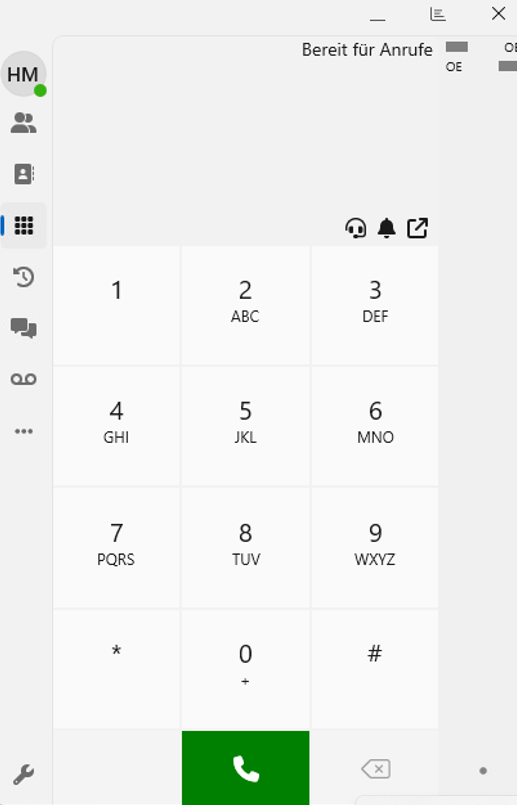
Das 3CX Windows Sopftphone wird nun auf Ihre Nebenstelle provisioniert und ist bereit

[![grafik.png](https://wiki.com4all.ch/uploads/images/gallery/2024-11/scaled-1680-/S8kTsmGincg0j04M-grafik.png)](https://wiki.com4all.ch/uploads/images/gallery/2024-11/S8kTsmGincg0j04M-grafik.png)